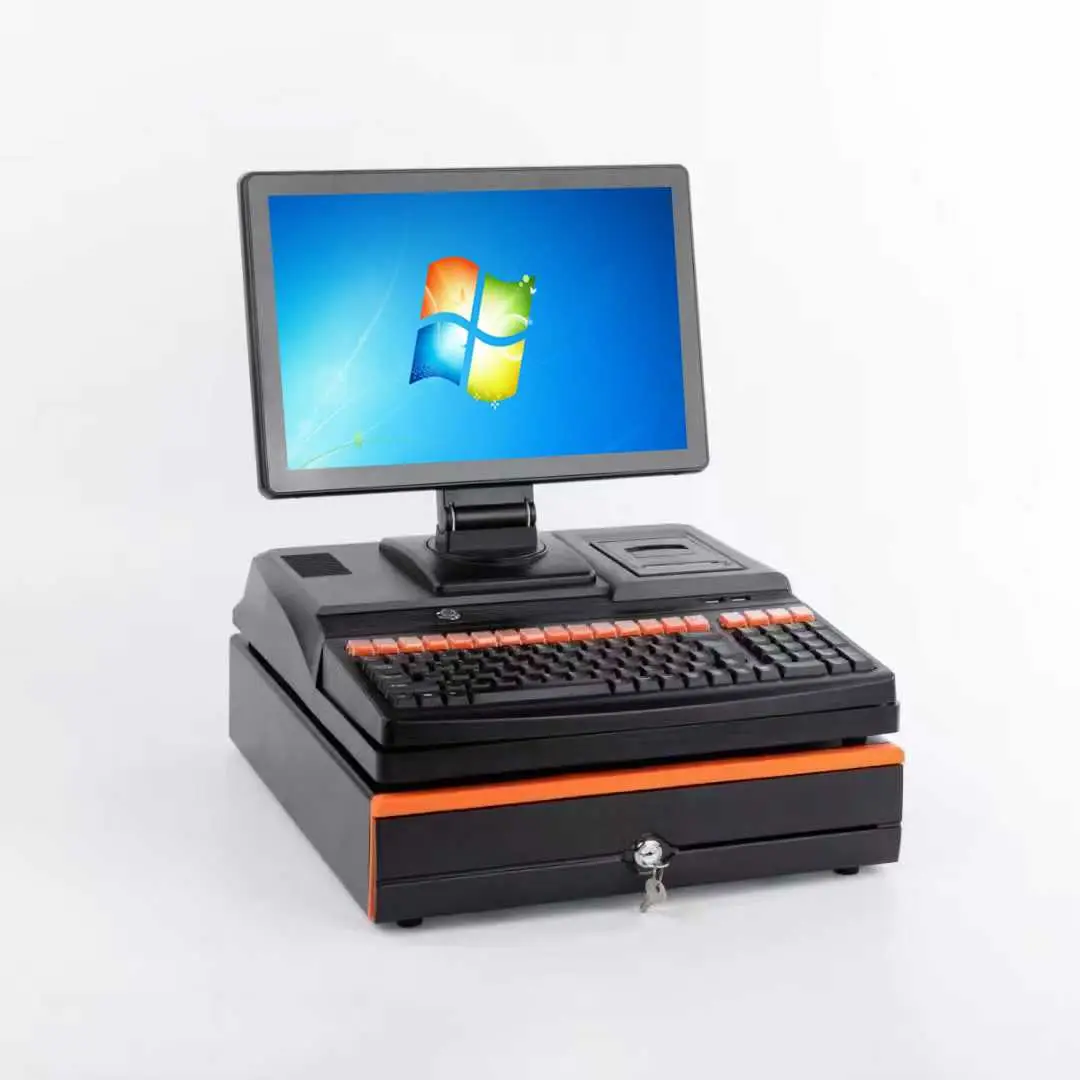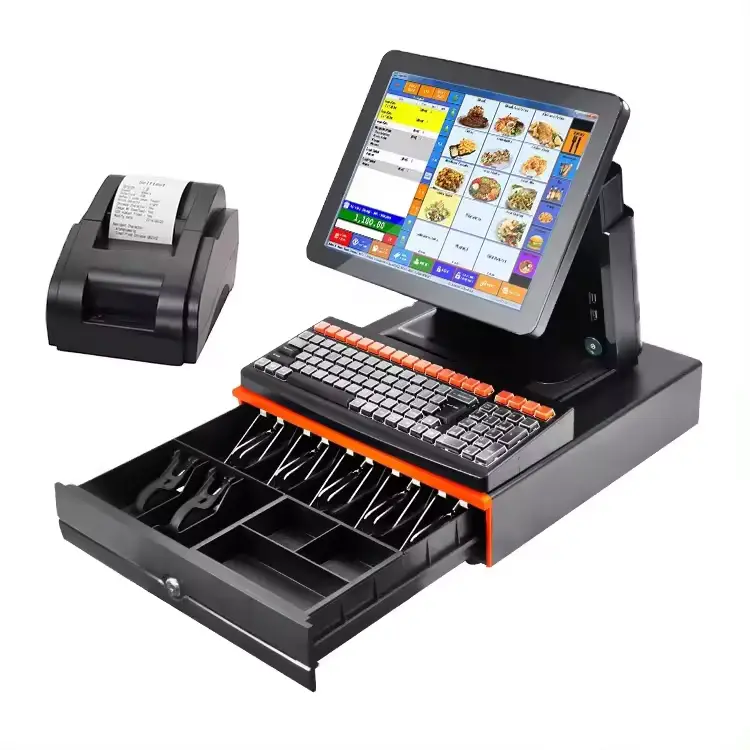

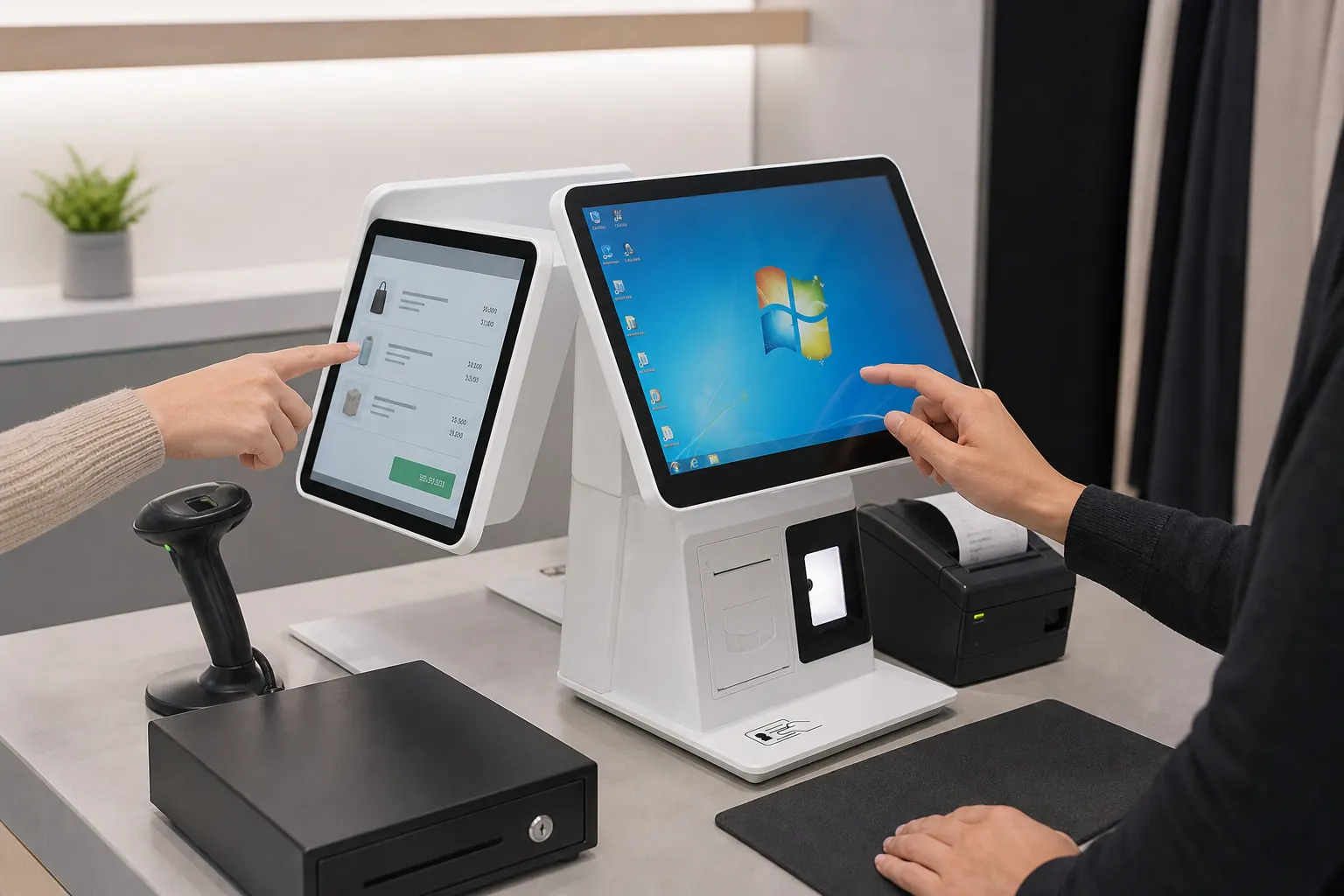
A second screen can make a POS counter look more complete, but appearance alone is not a purchasing reason. For a distributor or system integrator, the real question is what the customer-facing display will show, how the application will control it and whether staff can support it consistently.
A dual-screen POS usually combines a cashier-facing touchscreen with a rear display for the customer. Depending on the hardware and software, the customer screen may show an order list, price confirmation, promotional content, loyalty prompts or other information.
Shenzhen PENPOS supplies POS hardware. Display content, POS software, advertising management and payment functions are normally configured by the buyer’s software provider or system integrator.
Why Buyers Add a Customer-Facing Display
The strongest reasons are operational:
- Customers can review items and quantities before payment.
- Staff can identify mistakes while the order is still open.
- Restaurants can show an order summary at the counter.
- Retailers can present loyalty or promotional content when supported by software.
- A compact rear display can replace a separate pole display in some counter layouts.
These benefits depend on the application. A rear screen that only mirrors the cashier desktop may expose staff information or confuse customers. Define the content first.
Second LCD Screen or VFD Pole Display?
Second LCD Display
An LCD customer display can present richer layouts, product images and order details. It may suit retail, cafe and hospitality projects where the software has a dedicated customer-display mode.
Check:
- Screen size and resolution
- Mounting position and tilt
- Video connection or internal interface
- Extended versus mirrored desktop behavior
- Software support for the selected OS
- Cable routing and service access
VFD or Simple Line Display
A VFD-style display shows limited text, often item names and totals. It can be suitable when the software and local checkout workflow already support that format.
Check the communication interface, command protocol, character support, power and mounting. A familiar physical format does not guarantee software compatibility.
Public Cases Point to Different Display Priorities
Partner Tech’s public Fujin Tree Cafe case highlights a desktop POS with several I/O connections for peripheral use. A separate POSBANK retail case describes a large clothing-store network that needed multiple scanner options and sufficient ports. Together, these examples underline a basic point: the display should be planned as part of the whole counter connection map, not chosen as an isolated accessory.
Sources: Partner Tech Fujin Tree Cafe case and POSBANK South Africa retail case.
These are third-party industry cases, not PENPOS customer claims.
A Typical Retail System Integrator Scenario
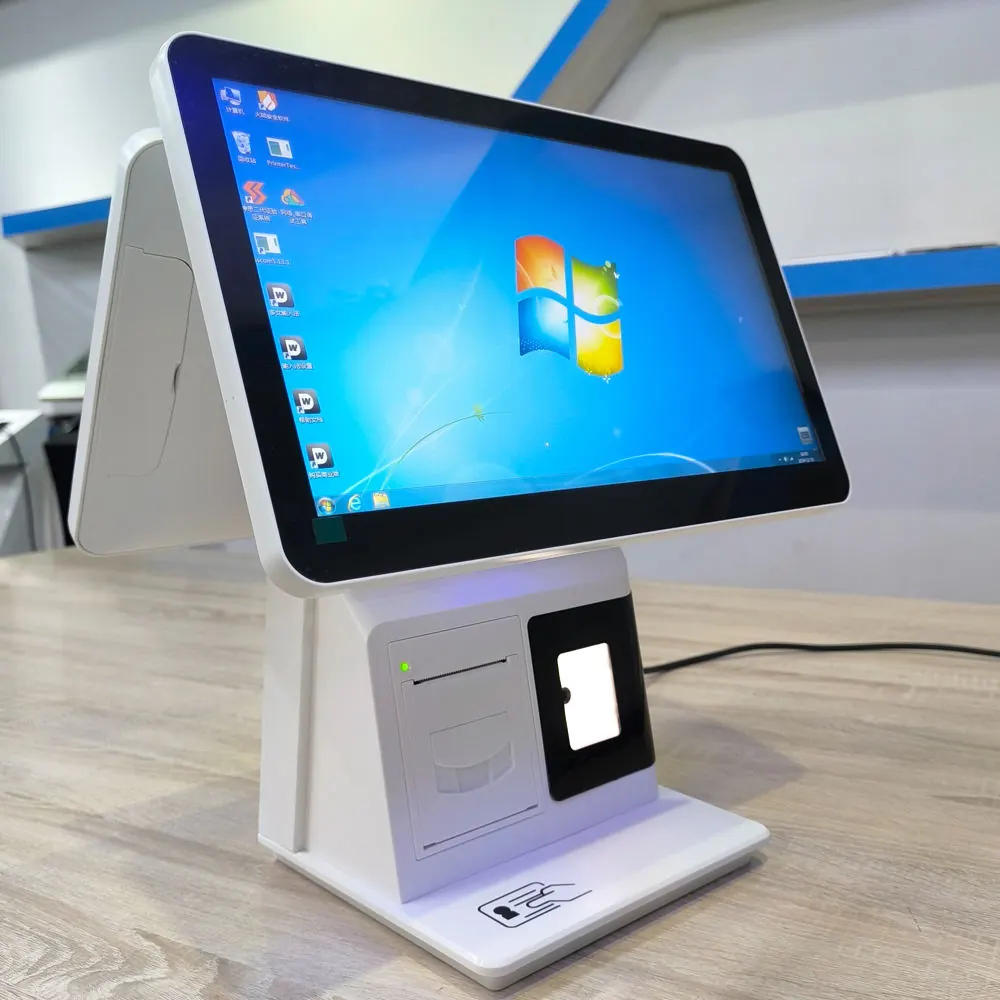
The following anonymized composite scenario reflects common POS project discussions. It is not presented as a named PENPOS customer deployment.
A system integrator is preparing checkout hardware for a specialty retailer. The buyer requests a “dual-screen POS” because a competing store shows product images on the customer side. The software team then explains that its current application can only mirror the desktop, while a dedicated customer-display module is scheduled for a later release.
Instead of ordering the larger rear display immediately, the integrator tests two options:
- A compact line display for item and total confirmation with the existing software
- A second LCD display using the software team’s development build
The test reveals that physical connection is not the main issue. The key decision is which screen behavior can be supported at every store. The first shipment therefore follows the currently supported display mode, while the larger display remains an approved future option after software validation.
The lesson is simple: hardware capability and application readiness must be approved together.
Decide What the Customer Should See
Write a short screen-content specification before requesting a quotation. It may include:
- Store or restaurant welcome screen
- Scanned item name and quantity
- Running subtotal and final total
- Order number
- Loyalty prompt
- Promotional image between transactions
- Language selection
- Blank or privacy screen when the counter is closed
Avoid assuming that the terminal manufacturer provides this software behavior. Ask the POS software provider to confirm exactly what it can output and on which operating system.
Check Screen Placement and Counter Ergonomics
The customer display must be visible without making the counter crowded. Confirm:
- Counter height and depth
- Distance between cashier and customer
- Viewing angle for standing customers
- Whether the rear screen blocks shelves or service openings
- Space for printer, scanner, payment terminal and cash drawer
- Access to ports and cables during maintenance
A larger display is not always better. In a narrow cafe counter, a compact rear screen may provide clearer order confirmation and leave more room for pickup or payment devices.
Verify Extended and Mirrored Display Modes
Two physical screens can behave in different ways:
- Mirrored mode shows the same content on both screens.
- Extended mode treats the customer screen as a separate desktop area.
- Application-controlled mode sends a dedicated customer view.
The required mode should be tested with the actual POS application. Also check what appears during startup, application crashes, software updates and remote support sessions. Customer-facing screens should not expose internal settings or sensitive information.
Test the Full Counter, Not Just the Display
Connect the complete hardware set:
- POS terminal
- Customer-facing display
- Receipt printer
- Barcode scanner
- Cash drawer
- Payment device managed by the relevant provider
- Network connection
Then run normal and exception workflows, including voids, returns, discounts, multiple quantities, long product names and language changes. Confirm that order information remains synchronized between cashier and customer views.
PENPOS receipt printer and barcode scanner categories can help buyers map the rest of the checkout hardware.
Consider Privacy and Payment Boundaries
A customer display should not show staff login details, internal inventory notes or another customer’s data. The POS software provider should control screen content and privacy behavior.
If the project includes card payment, do not treat the rear POS display as a certified payment device unless the payment provider explicitly approves the complete solution. Payment terminals, applications and certifications have their own requirements.
Prepare a Better Dual-Screen POS Inquiry
Include:
- Retail, restaurant or service application
- POS software and operating system
- Desired customer-screen content
- Screen size or counter-space limit
- Mirrored, extended or application-controlled mode
- Required printer, scanner, drawer and payment-device connections
- Sample quantity and expected project quantity
- Destination country
- Logo and packaging request, if applicable
Compare available all-in-one POS terminals and send the display workflow with your inquiry.
About Shenzhen PENPOS
Shenzhen PENPOS supplies POS terminals, printers, scanners, cash drawers, POS scales, kiosk hardware and checkout accessories for overseas distributors, software companies and project buyers. Customer-display and dual-screen options depend on the selected model. Software behavior and payment integration require confirmation with the buyer’s solution partners.
For model and configuration options, contact PENPOS with your application, screen-content requirement, peripheral list and quantity.
Frequently Asked Questions
Does every dual-screen POS show a separate customer interface?
No. Some systems mirror the cashier screen, while others support an extended desktop or a dedicated customer-display application. Confirm the required mode with the software provider.
Can the rear display show advertisements?
It may be possible when the POS software or a separate content application supports it. Hardware availability alone does not provide advertising management.
Is a second LCD screen better than a VFD display?
It depends on the workflow. LCD screens support richer content, while VFD displays can be practical for simple item and total confirmation with compatible software.
What should be tested before a bulk order?
Test the actual POS application, display mode, resolution, item list, totals, long product names, language, startup behavior, peripheral connections and counter layout.
Can a customer display replace a payment terminal?
Not automatically. Payment hardware and software must be approved by the relevant payment provider. A general POS display should not be described as a certified payment device without evidence.