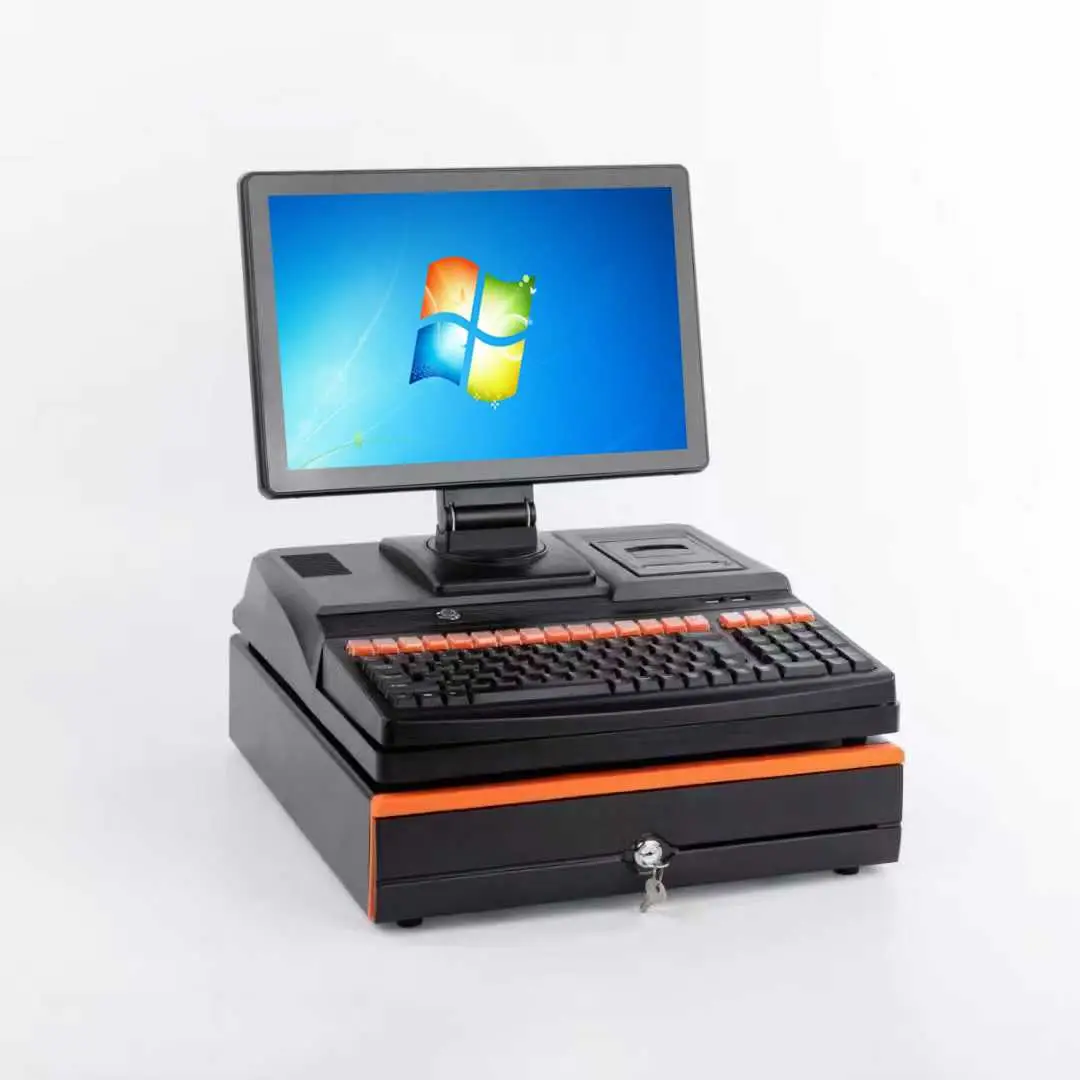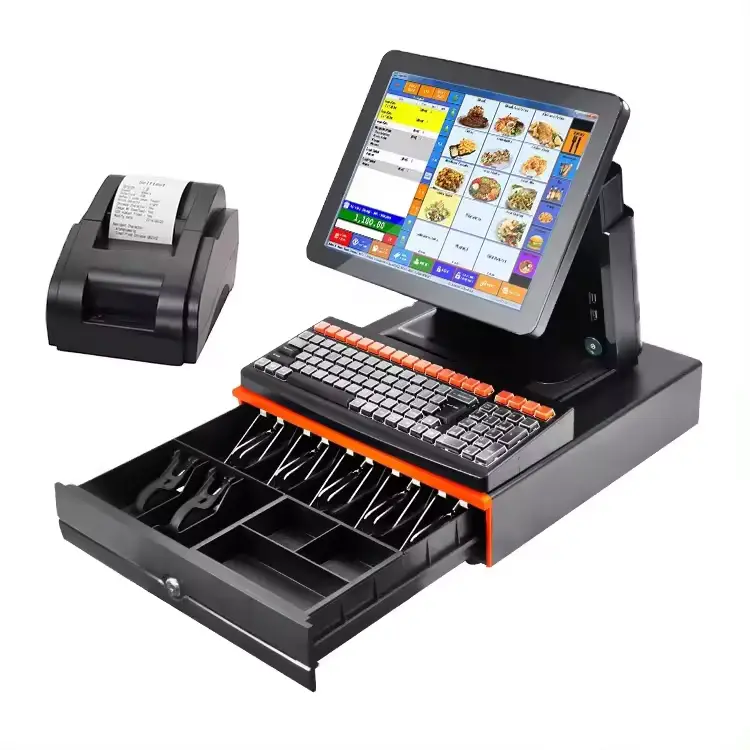

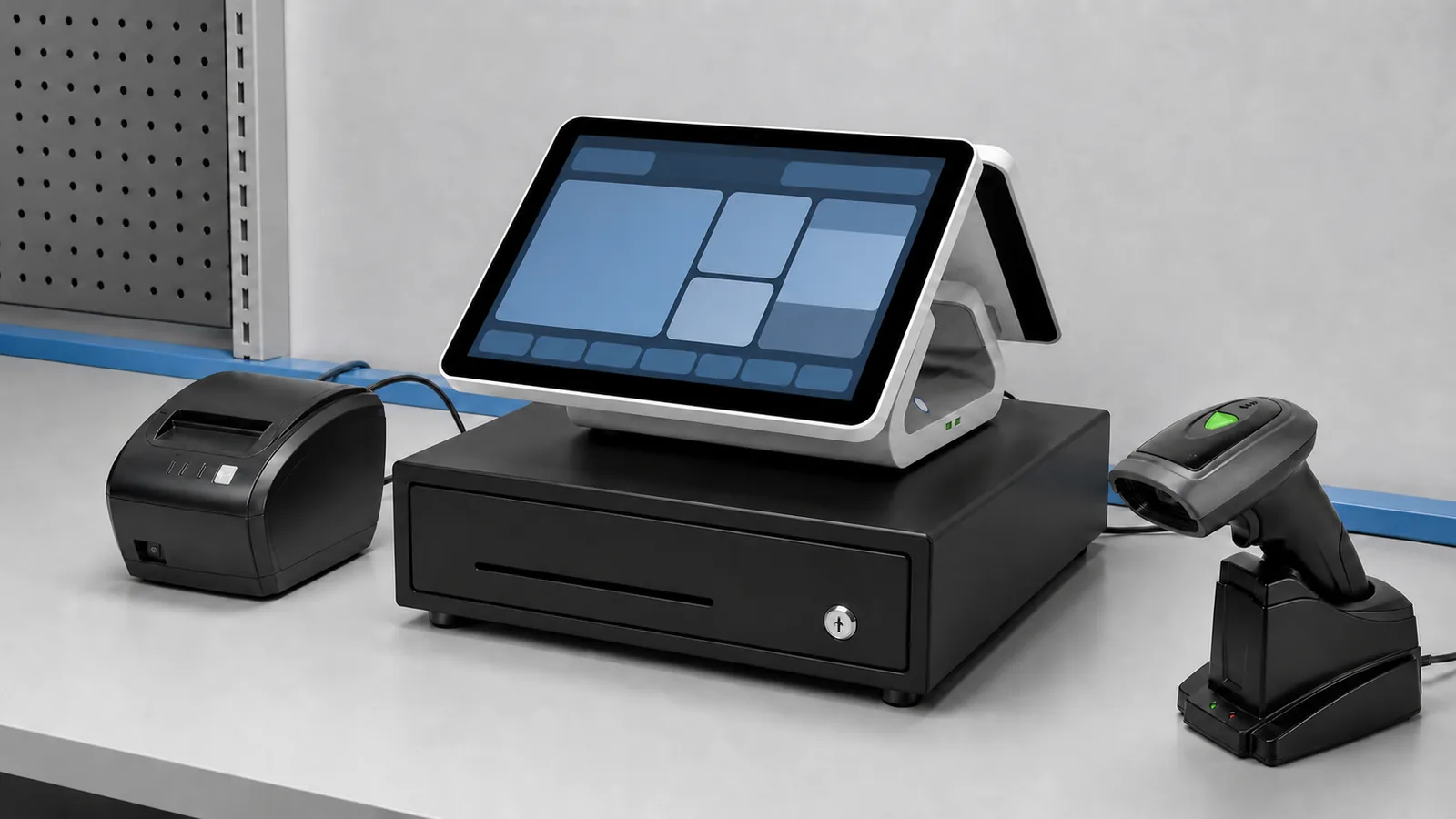
A complete POS hardware set may contain devices from several product families, each with its own interface, driver and power requirement. Buying every component from one supplier does not automatically prove that the final workflow will work with the intended software.
For POS software companies, system integrators and project buyers, compatibility should be treated as a test process. This guide provides a practical checklist for evaluating a terminal, receipt printer, barcode scanner, cash drawer and customer display before deployment.
Shenzhen PENPOS supplies POS hardware. Application software, payment processing and system integration are normally configured by the buyer or its technology partner.
Build a Hardware Map First
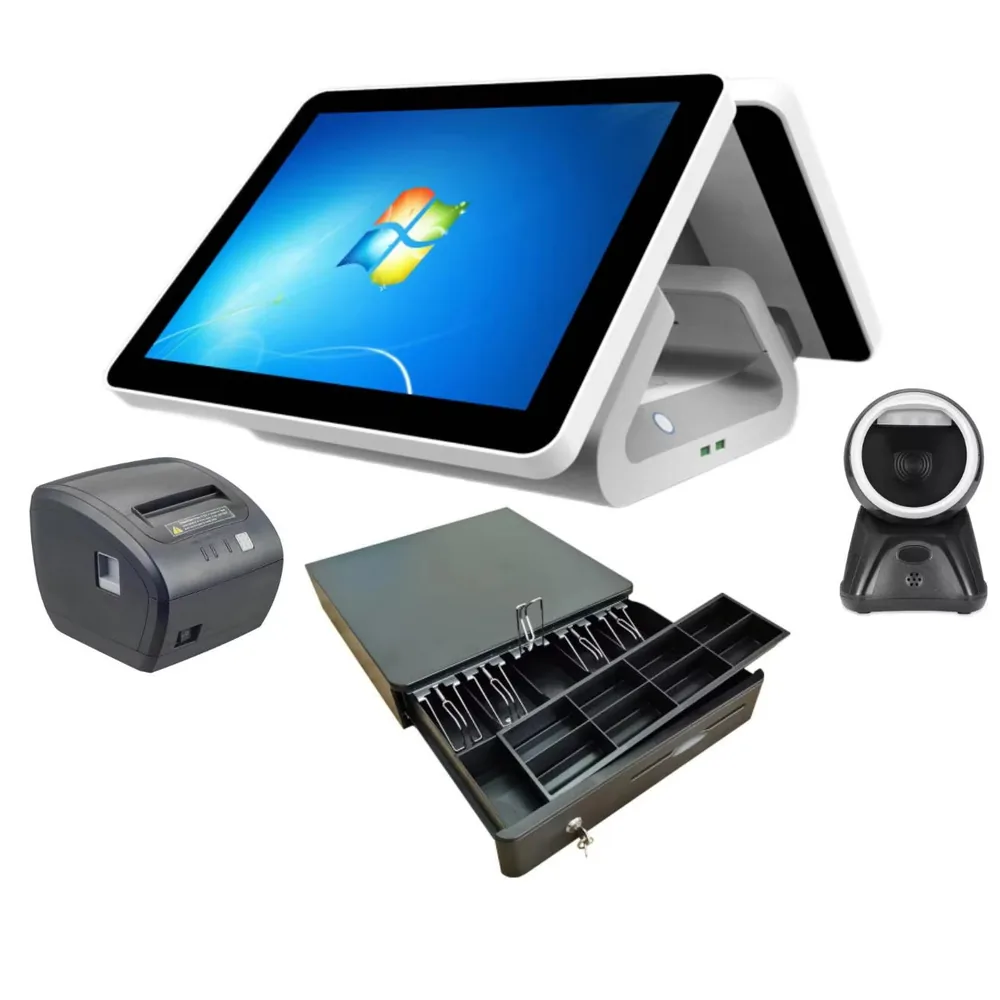
Start by listing every device in the checkout workflow.
Core Devices
- POS terminal or touchscreen computer
- Receipt printer
- Barcode or QR code scanner
- Cash drawer
- Customer-facing display
- Scale, if required
- Payment terminal or payment-device bracket
- Network equipment
For Restaurant Projects
- Front-counter receipt printer
- Kitchen ticket printer
- Kitchen display hardware
- Self-service kiosk
- Customer display or order-status screen
For Retail Projects
- Handheld or desktop scanner
- Cash drawer
- Label printer
- Price checker
- Weighing scale
- Customer display
Draw a simple connection map showing which device connects to the terminal, printer, network or power source. This often reveals missing ports before the sample arrives.
POS Terminal Checklist
The terminal is the center of the system. Confirm both software requirements and physical connectivity.
Operating System
- Required Windows or Android version
- 32-bit or 64-bit requirements, where relevant
- Driver support
- Update policy
- Language and regional settings
Performance
- Recommended processor
- Required RAM
- Required storage
- Database size and local services
- Video or customer-display workload
Interfaces
- Number and type of USB ports
- COM or RS232 ports
- LAN port
- Display output
- Audio connection
- Wi-Fi and Bluetooth requirement
- Cash drawer connection path
Physical Fit
- Counter dimensions
- Stand and viewing angle
- Cable routing
- Access to ports
- Ventilation
- Secondary display clearance
Compare available all-in-one POS terminals only after these requirements are clear.
Receipt Printer Checklist
The printer must match the software, paper format, working location and connection method.
Paper and Printing
- Receipt or label printing
- Paper width
- Required print density
- Auto-cutter requirement
- Expected print volume
- Paper loading method
Interface
- USB
- Ethernet or LAN
- Bluetooth
- Wi-Fi
- Serial connection
Software
- Driver availability for the target OS
- Supported command language
- Character set and language printing
- Logo or QR code printing
- Kitchen or counter routing in the POS application
Cash Drawer Control
Many cash drawers are triggered through the receipt printer. Confirm the printer has the required drawer port and that the software sends the correct open command.
Review PENPOS thermal printers when selecting counter, kitchen or mobile printing hardware.
Barcode Scanner Checklist
Scanner selection depends on the codes used in the buyer’s market and how staff work at the counter.
Code Type
- 1D retail barcodes
- 2D codes
- QR codes shown on phone screens
- Printed labels
- Damaged or low-contrast codes
Working Method
- Handheld scanning
- Hands-free desktop scanning
- Wired connection
- Wireless connection
- Charging cradle requirement
Software Input
Many USB scanners act like a keyboard, but configuration may still be required for prefix, suffix, language layout or special characters. Test the exact barcode formats used by the customer.
Compare wired, wireless and desktop barcode scanners for the planned checkout workflow.
Cash Drawer Checklist
A cash drawer may be mechanically simple, but the opening method must match the system.
Confirm:
- Drawer dimensions and counter space
- Bill and coin layout
- Lock and manual-open method
- Cable connector
- Trigger voltage and wiring
- Connection through printer or terminal
- Software open command
- Emergency procedure if the POS is offline
Never assume that an RJ11-style connector proves electrical compatibility. Confirm the pinout and trigger requirement for the selected printer or terminal.
Customer Display Checklist
Customer displays can show transaction information, advertising content or payment instructions, depending on the software.
Check:
- VFD, LCD or touchscreen format
- Display size and resolution
- HDMI, VGA, USB or other connection
- Extended versus mirrored display mode
- Software support for customer-facing content
- Stand position and cable length
- Touch function, if required
A second screen is only useful when the application can control it as intended.
Scale and Weighted-Item Projects
For supermarket, fresh food and deli projects, a scale adds metrology and software considerations.
Prepare:
- Capacity and division requirement
- Label or receipt printing need
- Communication interface
- Barcode format
- Local legal-metrology requirement
- Product database workflow
- Integration method with the POS application
Legal requirements differ by country. The buyer should verify local rules and confirm which documents apply to the selected scale model.
Network and Power Checklist
Hardware can pass a desk test and still fail at the installation site because of network or power conditions.
Network
- Wired or wireless connection
- Static or dynamic IP requirement
- Local server address
- Firewall and port rules
- Reconnection after interruption
- Offline workflow supported by the software
Power
- Input voltage for destination market
- Plug type
- Adapter rating
- Power for USB or integrated modules
- Surge protection or UPS planning
- Safe cable routing
Payment terminals may have separate certification, network and acquirer requirements. Confirm payment integration with the authorized payment provider.
A Practical Sample Test
Use the same hardware, software and peripherals planned for deployment.
- Record every model, serial interface and software version.
- Install the intended POS application.
- Connect printer, scanner, drawer and customer display.
- Run test transactions and print different receipt formats.
- Scan real product labels and phone-screen QR codes.
- Test drawer opening from the application.
- Restart every device and confirm automatic recovery.
- Disconnect and reconnect the network.
- Run the system for a realistic working period.
- Document results, issues and approved settings.
For multi-store projects, keep an approved reference setup. If a component changes, repeat the affected compatibility tests before deployment.
Information to Send for a Bundle Quotation
Send the supplier a structured request:
- Business application and target market
- POS software and operating system
- Terminal performance requirement
- Required screens and ports
- Printer paper width and interface
- Barcode types and scanner format
- Cash drawer connection method
- Scale or customer display requirement
- Quantity and destination
- Sample-testing plan
- Branding or packaging discussion points
The supplier can then propose hardware for evaluation rather than guessing from a short request such as “send complete POS price.”
About Shenzhen PENPOS
Shenzhen PENPOS supplies POS terminals, receipt printers, barcode scanners, cash drawers, POS scales, kiosks and related checkout equipment for overseas B2B projects.
For a complete-hardware discussion, share your software platform, connection map, peripheral list, quantity and destination through the PENPOS contact page. Configuration and compatibility should be confirmed with a sample before bulk deployment.
Frequently Asked Questions
Are USB POS devices always plug and play?
No. The operating system may recognize a device, but the POS application can still require a driver, command setting or scanner configuration.
Can a cash drawer connect directly to the POS terminal?
Some setups support this, while others trigger the drawer through the receipt printer. Confirm the connector, voltage, pinout and software command.
Can one receipt printer be used for both counter and kitchen printing?
It depends on the workflow, network and environment. Counter and kitchen printers often have different location, interface and durability requirements.
How do I know whether a scanner reads phone QR codes?
Confirm that the selected scanner supports the required 2D codes and screen scanning, then test it with the actual customer application.
Does PENPOS configure POS software?
PENPOS focuses on hardware supply. Software and integration are normally handled by the buyer, software provider or system integrator.
Why is sample testing important?
It verifies the complete combination of software, drivers, ports, peripherals, network and workflow before a larger order.